Find the full footprint
Identify the object, any cast shadow, reflections, and the parts of the background it hides. Decide which of those traces should disappear with it.
Images / Use case
Remove an unwanted element by selecting its footprint and describing the background that should continue behind it.
A distracting object can pull attention away from the strongest part of a photograph. The most useful result is not merely an empty target area: it is a scene that still makes sense after the object is gone.
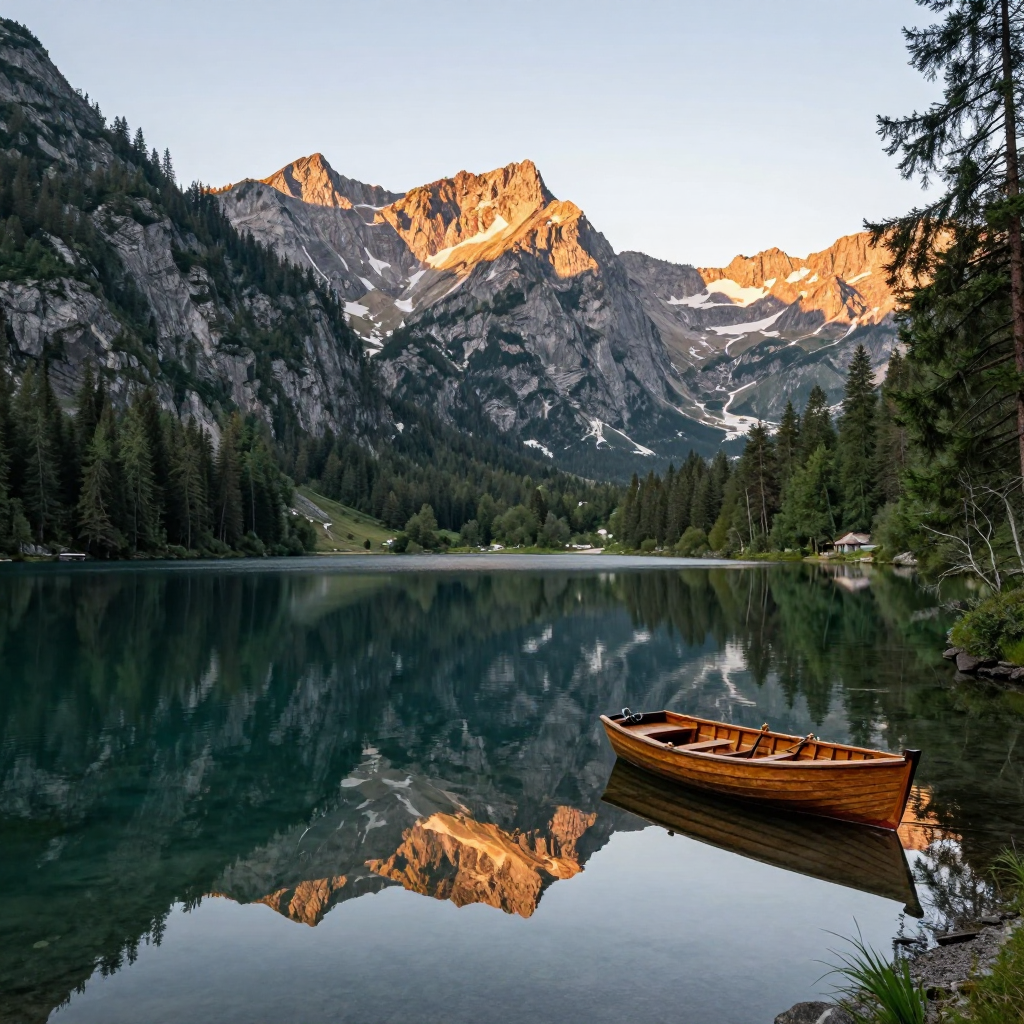
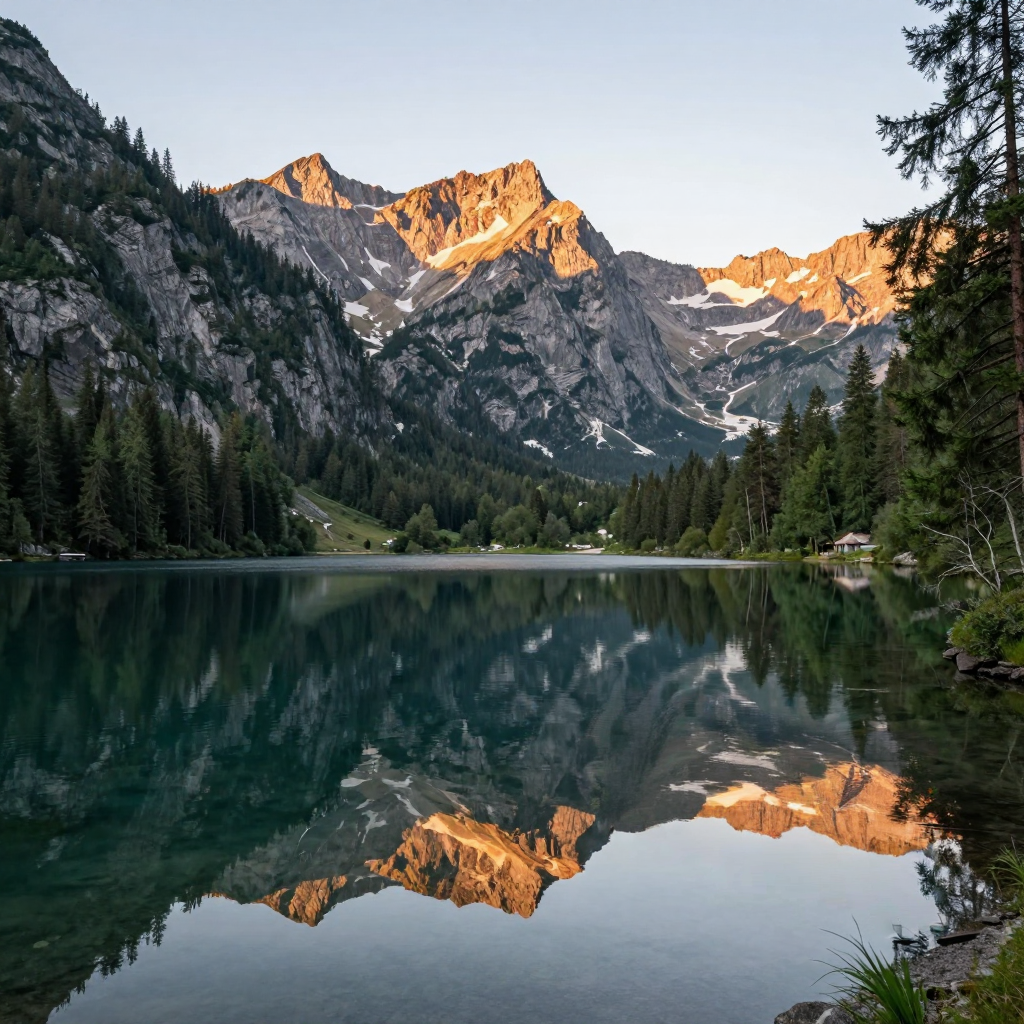
From input to intention
Prepare the input, express the intention, and review what actually changed.
Identify the object, any cast shadow, reflections, and the parts of the background it hides. Decide which of those traces should disappear with it.
Tell the tool what belongs behind the removed element: water, wall, pavement, fabric, or another part of the scene. Include important texture and perspective cues.
Look for a remaining shadow, a repeated texture patch, a broken line, or a reflection with nothing left to reflect. Compare against the original composition.
Start with a useful brief
Use this as a starting brief, then adjust it to your own source and intention.
Uninterrupted calm alpine lake water with clear reflections of the surrounding mountains and pine forest, subtle natural ripples, realistic water texture, soft dawn light, empty water surface throughout the foreground.
Recorded replacement prompt. The successful Region to change is “boat. reflection of the boat.” Open the matching library recipe for the source image and detailed settings; the worker chooses a random seed.
When an object disappears, something has to occupy the space behind it. The source may not show the hidden background, so the output needs to be evaluated rather than treated as a factual reconstruction.
For documentary or evidentiary images, be clear that the picture has been edited. A plausible replacement is not proof of what was originally behind the object.
A wall may need a simple texture continuation, while a tiled floor requires perspective and alignment. Water can involve reflections that need to remain coherent across the edit.
Describe the kind of continuation the scene needs. Then inspect the relevant geometry rather than judging every result by the same checklist.
Removing a central object may destroy the visual balance or require inventing too much of the scene. Consider whether reframing or a more limited edit would better serve the image.
This comparison is an actual Studio removal using a text-described region, not a painted mask. The recorded recipe includes the source image, both selected elements and the replacement prompt.
Choose the right approach
| Your intention | A useful starting point | What to watch |
|---|---|---|
| A small distraction near the edge | Consider cropping before generating | A crop can change the balance of the entire composition. |
| An isolated object within the scene | A focused Inpainting selection | Include its contact shadow when that shadow should disappear too. |
| An element that should become something else | A replacement instruction with a selection | Specify the intended replacement rather than leaving the region’s purpose ambiguous. |
The useful details
Use Inpaint Anything. This detailed use-case page helps you prepare the task without adding another main navigation item.
Yes, when leaving it would make the edited scene inconsistent. Treat reflections and shadows as part of the object’s footprint.
Do not assume that. A generative replacement can be plausible without matching what was physically behind the object.
The connected Object Remover uses the Region to change text field to select the object and its traces. Use the main direction for the replacement background. Guided Edit is a separate instruction-led alternative.
Connected workflows
One tool. More possibilities.
This use case belongs inside the broader tool. Explore related approaches without learning a different navigation system.