Select the complete target
Include the object and relevant traces such as its shadow or reflection. Leave visible surroundings that help explain the replacement texture and perspective.
Images / Inpaint Anything
Select the part of an image you want to change, then describe what should belong there.
Inpainting is useful when the location of the edit matters as much as the description. Remove a distracting object, replace an element, or revise a selected area while using the surrounding image as context.
Your inputs, directions, and versions stay together in Studio.
Choose your starting point
Region to change identifies the target in words. The main direction describes what should appear there.
A considered workflow
The connected native workflow selects a region from text. Keep the original image available for comparison.
Include the object and relevant traces such as its shadow or reflection. Leave visible surroundings that help explain the replacement texture and perspective.
For removal, describe the background you want to see rather than only saying what should disappear. For replacement, specify material, scale, placement, and light.
Compare the edited image at normal size and close up. Inspect repeated patterns, reflections, horizon lines, and the point where the edit meets the original.
From pointing to replacing
The selected region says where to work. The direction says what should belong there.
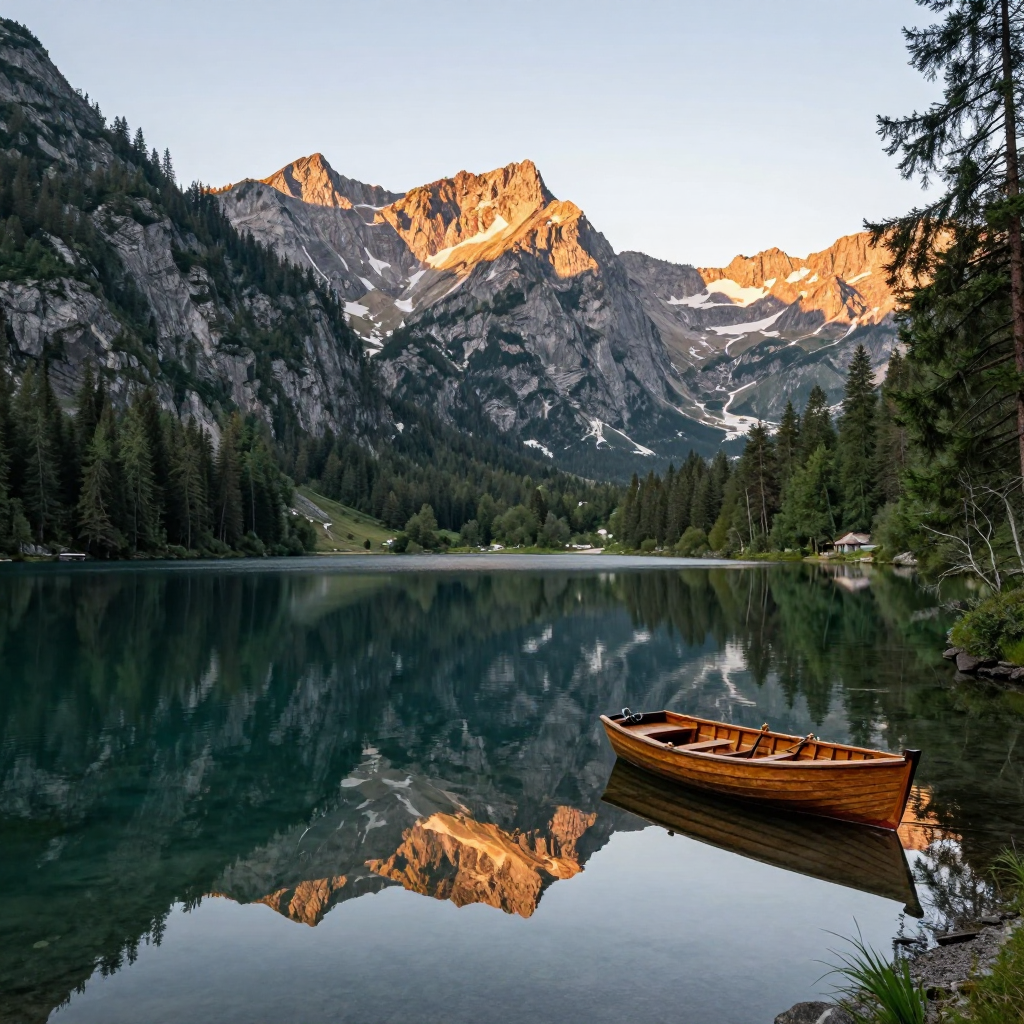
01 / Original source
02 / Region: boat. reflection of the boat.
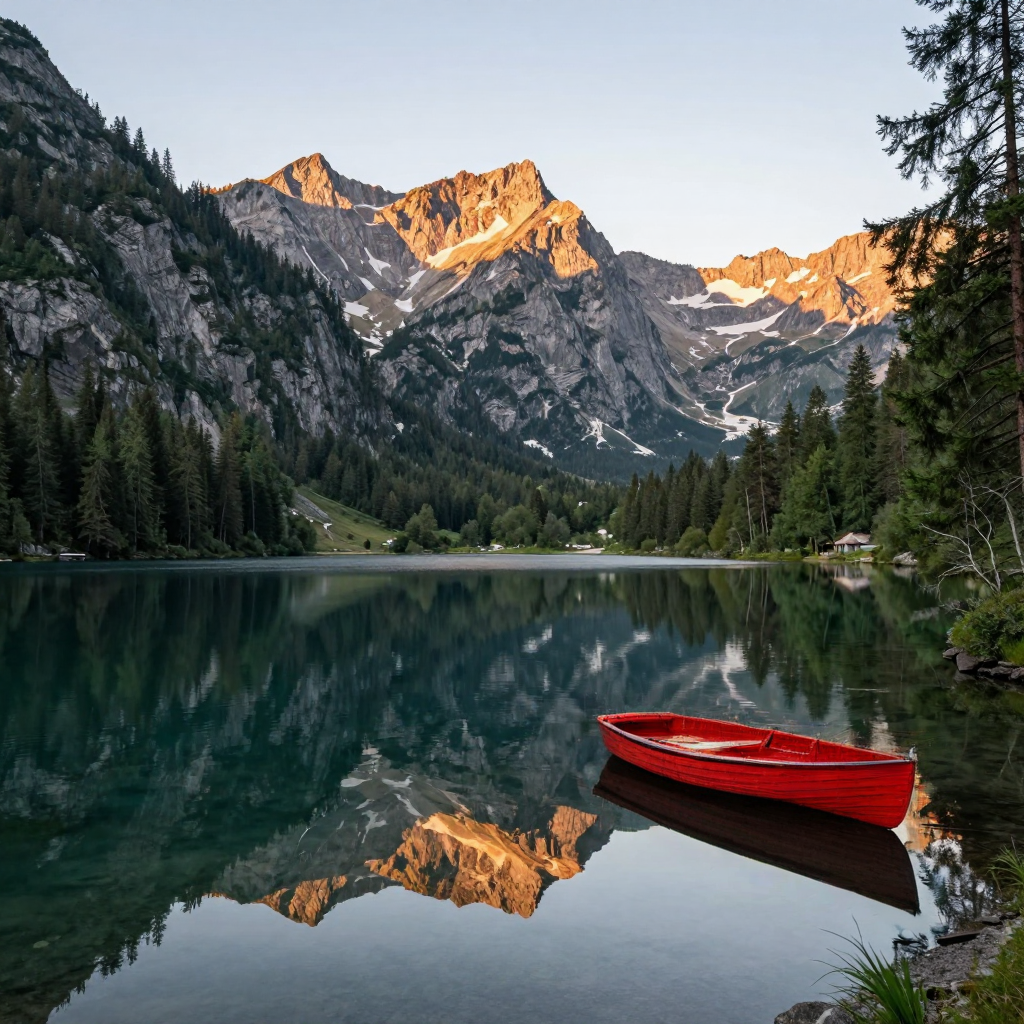
03 / Native red-boat result
Make the brief do the work
This is the actual prompt used for the displayed red-boat result. Removal has its own matched example and recipe.
A bright red painted wooden rowboat on a calm alpine lake, vivid scarlet red hull, realistic paint texture and natural dawn light. Its reflection below the boat has matching dark red color on the lake surface.
Exact recorded prompt. Region to change: “boat. reflection of the boat.” The library recipe includes the original source and actual settings. The worker randomizes its seed.
A person or object can affect more than its visible outline. A cast shadow, reflection, displaced water, or an occluded background may need to be included in the edit.
Describe the object and related traces in Region to change. Add a Region to preserve only when needed, keeping useful surroundings outside the intended edit.
A plain wall and a tiled floor pose different editing problems. The floor has perspective lines and repeated shapes that should remain aligned through the edited region.
Review the output against the surrounding structure. If the boundary is convincing but the interior pattern is wrong, refine the description instead of judging the result only by whether the original object disappeared.
The connected Inpaint workflow uses a text-described region to build its selection. Guided Edit uses the whole image with an instruction. A painted draft mask is not accepted by the current native Inpaint connection.
Image Inpainting and Video Inpainting have separate Studio entries and separate service adapters. An image-editing workflow does not establish support for temporal video tracking.
The useful details
Include it when removing or replacing the object would make the existing shadow incorrect. Review reflections and other traces for the same reason.
Select enough to cover the intended change and its boundary, while leaving useful context visible. The right extent depends on the subject and the image; there is no universal mask size.
This page describes the existing image workflow. Video Inpainting has its own page under Video Edit.
Yes. It is a native Inpaint Anything result from Studio, with the original input and exact controls available in the recorded recipe. It is not a third-party illustration. The worker chooses a random seed, so repeat runs need not be pixel-identical.
Connected workflows
Your next step
Explore the possibilities here, then continue in the existing Studio.